
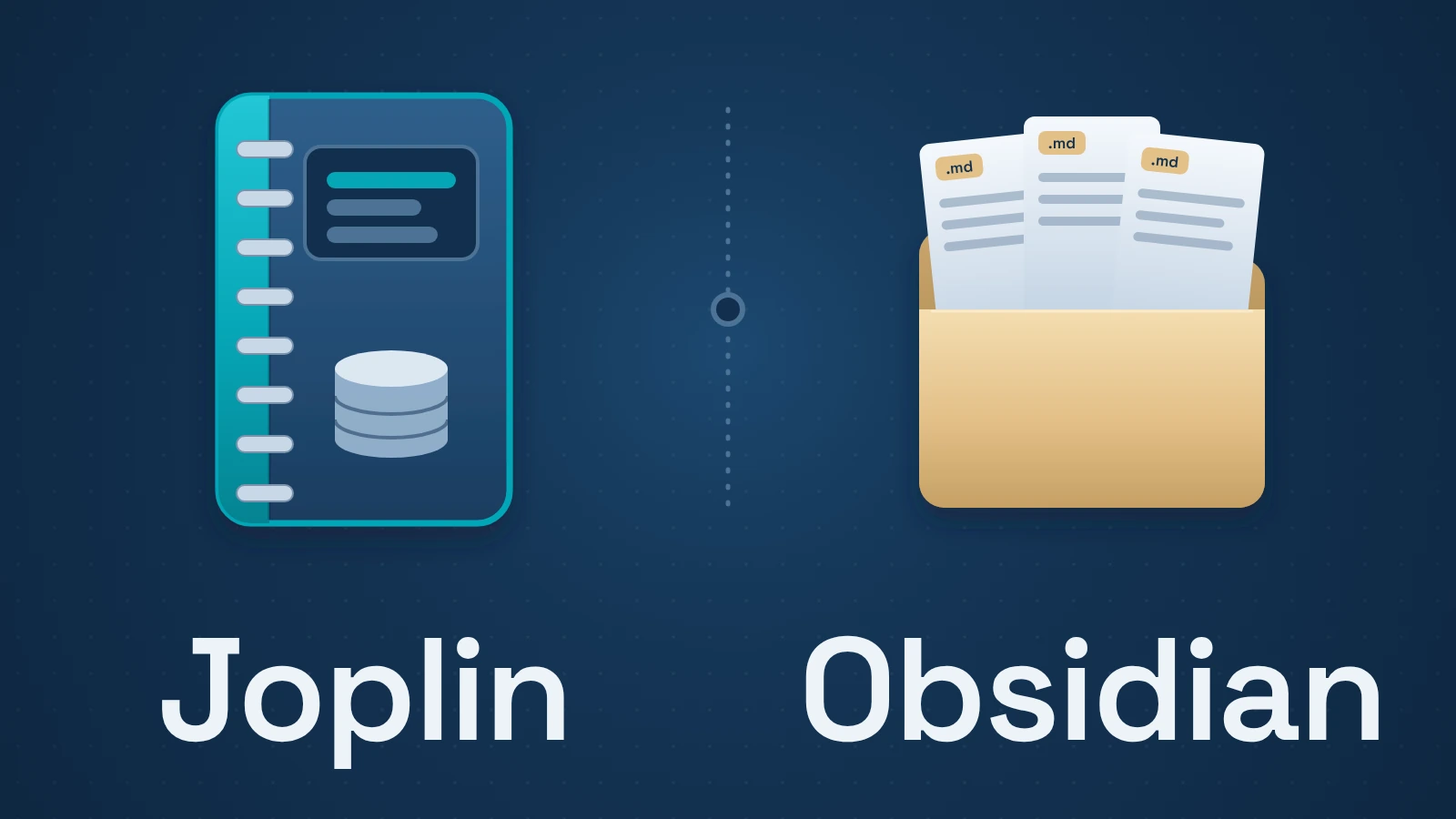
A note app can keep your writing accessible in different ways: as files you work with directly, or through a notebook and documented exports. This comparison focuses on that boundary, the editor and sync choices, and what a move to another tool involves.
The practical question is what you need to keep working outside the app: ordinary note text, links, attachments, tags or plugin-generated views. Those dependencies matter more than a feature count when choosing a home for years of notes.
Quick answer
Choose Obsidian for direct access to Markdown files and Joplin for its notebook and rich-text workflow. For sync, compare Obsidian’s paid service with Joplin Cloud or a Joplin-supported storage service you can maintain. Keep a native backup and inspect a small portable export before committing a large collection.
Contents
- Decision matrix
- What is stored on your computer?
- Choose the editor before choosing the ecosystem
- Which sync setup will you maintain?
- What sync encryption covers
- Links, attachments, and plugins during a move
- A migration check worth doing before you commit
- Which should you choose?
- Evidence and scope
Decision matrix
| Decision | Joplin | Obsidian |
|---|---|---|
| Working collection | App-managed notebook; documented exports | Markdown files in a local vault folder |
| Editing | Markdown plus rich-text editor with limitations | File-based Markdown workflow |
| Sync | Multiple documented targets; E2EE setup required | Optional paid Sync; inspect the service you use |
| Exit strategy | Keep JEX backup and inspect portable export | Keep files, attachments and required conventions |
What is stored on your computer?
Obsidian stores notes as Markdown text files inside a local folder called a vault. Its documentation explicitly allows other text editors and file managers to work with those files. The app also keeps settings and caches; “plain-text notes” does not mean the entire application consists only of text files.
That file boundary is useful if you want to search notes with external tools, manage a directory yourself, or open a note without first exporting it. You should still back up the folder and any attachments and settings you need.
Joplin supports an external-editor command too. That lets another editor work on a note through Joplin’s workflow; Obsidian’s distinction is direct access to the collection as ordinary files without an export or an app-mediated editing command.
Joplin stores notes, notebooks, tags, and metadata in its profile’s SQLite database, with resources alongside it. Its import/export documentation provides the routes out: JEX for a native backup and Markdown export for content you want to use elsewhere. Opening a Joplin profile in an ordinary Markdown editor won’t give you the same editable folder of notes as an Obsidian vault.
Keep the native backup for restoring the application collection. Use the portable export to check what another tool can read. Keep a JEX backup to restore the collection in Joplin. Readable text in a portable export does not establish that its notebook structure survived.
Joplin also warns against manually changing its sync-directory files: they are an application sync representation. Use the app’s documented import/export routes when moving content.
Choose the editor before choosing the ecosystem
Joplin supports Markdown and a rich-text editor. That can suit someone who wants notebooks and formatting controls without making Markdown syntax the center of everyday writing.
Joplin’s rich-text editor converts through Markdown. Its documentation notes practical limits: tables need a header row, some HTML formatting can be lost, and many Markdown plugins are incompatible with rich-text editing. A note that depends on those constructs deserves a trial edit before you settle on that workflow.
Obsidian is a more natural starting point if Markdown files themselves are part of the attraction. Its internal-link documentation supports both Markdown links and wikilinks. That flexibility is useful inside the app, but the fact that a link is text does not guarantee that another Markdown reader interprets it the same way.
For ordinary meeting notes, test the writing controls and how quickly you can find the note again. For a heavily linked research notebook, give internal links, filenames, and plugin dependencies more weight. Give more weight to the features your own notes use.
Which sync setup will you maintain?
Joplin documents several sync targets, including its own cloud service and third-party or self-managed options such as WebDAV, Nextcloud, S3, Dropbox, OneDrive, and a local filesystem target. That flexibility matters if you already operate a suitable service.
If you already run Nextcloud or WebDAV, Joplin can fit that arrangement. You take responsibility for that service’s credentials, storage, and availability. Joplin Cloud offers a vendor-run alternative.
Obsidian offers its paid Sync service. Its pricing page describes encrypted synchronization, version history, and collaborative vaults. The free app does not require an account for local use.
Mobile sync deserves a separate check. Joplin’s current FAQ says synchronization is interrupted when the mobile app closes, goes into the background, or the display sleeps. Allow the initial sync to finish and compare sync status across devices before relying on a newly populated notebook.
Separate the app from the sync bill. Both applications can be used locally without buying their cloud service. A self-managed sync arrangement adds your own storage and maintenance costs; a subscription pays the provider to operate the service.
Obsidian’s current commercial license is optional, so an older comparison that treats it as a mandatory work-use fee overstates the cost. Sync and Publish are separate optional subscriptions.
What sync encryption covers
Enable Joplin’s end-to-end encryption through its documented setup, starting on one device and allowing the configuration to sync to the others. Choosing an encrypted storage provider and enabling Joplin’s own E2EE are separate settings.
Obsidian describes end-to-end encryption for its Sync service. That statement concerns that service, not every possible way someone might copy a vault between devices.
Protect the local note collection and backups separately. Someone using an unlocked device may be able to read local notes even when the sync service uses end-to-end encryption.
This comparison follows the vendors’ documented encryption setup. It doesn’t include a security audit.
Links, attachments, and plugins during a move
A Markdown file keeps the text accessible to another editor. Its usefulness after a move also depends on the link syntax, attachment paths, and extensions your notes contain.
Consider a note called Project Alpha. Obsidian can link to it as [[Project Alpha]] or with a Markdown link such as [Project Alpha](Project%20Alpha.md). Its help recommends Markdown links when interoperability matters. Joplin’s internal links use note identifiers such as :/note-id. A migration tool may convert these, but copying the text alone leaves the destination to interpret them.
Obsidian also documents block references as an app-specific feature. A link to a particular paragraph can require more attention than a link to a whole note. For attachments, check that the export contains both the file and a reference the destination can resolve.
A plugin-generated query or view may depend on code and metadata outside the visible prose. Preserve the underlying information and identify which plugin produces the result. That gives you something concrete to inspect in an export.
For a long-term archive, list the structures you need to keep working: whole-note links, paragraph links, tags, attachments, and any generated views.
A migration check worth doing before you commit
Obsidian to Joplin: back up the vault, then use Joplin desktop’s File → Import → MD – Markdown (directory) on the folder you want to bring in. Joplin documents that folders and subfolders become notebooks and subnotebooks. After importing, check the links, attachments and plugin-dependent notes you need to keep working.
Joplin to Obsidian: keep a JEX backup for restoring Joplin, and make a separate Markdown with Front Matter export for the move. Joplin documents that this export includes YAML fields such as title, creation/update dates and tags. Obsidian’s documented Markdown route is to drag files or folders into its File explorer, or copy them into the vault folder with your system’s file manager. Bring the exported attachments too; a Markdown file alone cannot supply a missing image or PDF.
Use a copy of one notebook first. In the destination, follow whole-note and paragraph links, open an image and a PDF, inspect tags and dates, and compare one plugin-dependent note with its original. These checks target the structures the file formats alone cannot guarantee; they are not an alternative to using the documented route above.
The routes above were checked against the vendors’ documentation on October 30, 2026. We have not completed an app-to-app migration test, so tag mapping, date interpretation, link conversion and attachment handling remain unverified in a migrated collection.
Which should you choose?
If direct access from other file tools is non-negotiable, Obsidian’s vault model answers that requirement. If Joplin’s notebook and editor fit your work, its export requirement may be an acceptable trade-off. Before moving the full archive, resolve any failed links, missing attachments or metadata differences found in the small copy.
Evidence and scope
This is a researched comparison based on primary documentation checked October 18, 2026, with the migration routes rechecked October 30, 2026. No application-performance, synchronization-reliability, security, or migration benchmark was completed. Claims about file and export formats describe documented behavior, not verified equivalence after import.
Sources
- How Obsidian stores data
- Obsidian pricing and optional commercial license
- Joplin synchronization
- Joplin end-to-end encryption setup
- Joplin import and export
- Joplin Markdown reference
- Joplin rich-text editor limitations
- Obsidian internal links
- Joplin user profile and database
- Joplin FAQ: external editing, sync directory and mobile sync
- Joplin Markdown with Front Matter export
- Obsidian Markdown import