

Screen tearing is what happens when the display starts showing a new frame before it has finished scanning out the previous one. The result is usually a visible horizontal break: the top and bottom of the image come from different moments in the game.
The fix depends on the display and the frame-rate range you are actually running in. VSync, variable refresh rate and an FPS cap all solve different parts of the timing problem.
Quick answer
If your display supports VRR — such as AMD FreeSync, NVIDIA G-SYNC or standards-based Adaptive-Sync — start there. VRR lets the display adapt its refresh timing to the frames the GPU is producing. If your frame rate can run above the VRR range, an FPS cap can keep it inside that useful range. Traditional VSync is still effective at preventing tearing, especially on fixed-refresh displays, but it can add latency or change frame pacing when the GPU cannot keep up.
Contents
- What screen tearing actually is
- Tearing is not the same as stutter
- What VSync does
- What VRR, FreeSync and G-SYNC change
- Why an FPS cap can help
- What happens above and below the VRR range
- Does fullscreen versus borderless change tearing?
- Which fix should you try first?
- A practical troubleshooting order
What screen tearing actually is
A monitor does not receive an entire frame and reveal it all at once. It refreshes the image over a short interval. Meanwhile, the GPU may finish another frame and make that frame available for display.
If the displayed frame changes during that scan, one part of the screen can show the older frame while another part shows the newer one. Intel describes VSync as synchronizing game frame rate with display refresh rate and notes that a lack of synchronization can produce the familiar horizontally glitched or duplicated appearance.
Tearing is therefore a timing problem, not a sign that the panel itself is physically damaged.
Tearing is not the same as stutter
These symptoms are easy to mix up because several can appear in the same game.
- Screen tearing: a visible horizontal discontinuity where different parts of the image represent different frames.
- Stutter: uneven delivery of frames, so motion appears to pause or jump.
- Judder: uneven motion caused by a mismatch between content cadence and display cadence.
- Low frame rate: motion is simply being updated less often.
A setting can improve one of these while making another worse. Turning VSync on can remove tearing, for example, without fixing the reason a game is dropping or delivering frames unevenly.
What VSync does
Traditional VSync makes presentation wait for the display’s refresh schedule. In the simple case, that stops the GPU from switching the displayed frame partway through a refresh.
That is why it remains a reliable anti-tearing option on a normal fixed-refresh monitor. It also explains the tradeoff. A completed frame may have to wait for the next presentation opportunity rather than being shown immediately. Intel’s current guidance says VSync aligns frame rate with refresh rate and can prevent tearing; the same page notes that behavior varies by application and graphics stack. NVIDIA’s driver reference likewise describes Vertical sync as synchronizing rendering with display refresh.
For a slow-paced game, that latency tradeoff may be irrelevant. In a competitive game where input response matters, it can be noticeable.
What VRR, FreeSync and G-SYNC change
Variable refresh rate reverses the relationship. Instead of forcing the GPU to fit a rigid display cadence, the display can refresh in response to new frames within a supported range.
That is the basic idea behind AMD FreeSync, NVIDIA G-SYNC and VESA Adaptive-Sync implementations. When frame rate moves around inside the display’s VRR range, the display can follow it rather than repeatedly falling out of phase.
AMD’s current FreeSync documentation also explains Low Framerate Compensation. On displays that support it, frames can be repeated when game frame rate drops below the panel’s minimum VRR frequency so the display can continue operating at a synchronized refresh rate.
VRR has limits. Every display has a supported operating range, and behavior above or below it depends on the display, GPU, driver settings and whether features such as LFC are available.
Why an FPS cap can help
An FPS cap does not synchronize the monitor by itself. Its job is to keep the GPU from rendering beyond a chosen rate.
That becomes useful when a game regularly runs above the top of a monitor’s VRR range. A cap can keep frame rate within the range where VRR is doing useful work instead of repeatedly crossing its upper boundary. NVIDIA exposes a Max Frame Rate control in its driver, and AMD exposes comparable frame-rate limiting controls on supported hardware.
Do not treat one universal cap value as a law. Advice such as “always cap exactly three FPS below refresh” is a tuning convention, not a rule established by the display standards themselves. The practical objective is simply to keep presentation behavior stable for your hardware and game.
What happens above and below the VRR range
The important number is not just the monitor’s advertised maximum refresh rate. It is the actual VRR range supported by that display and connection.
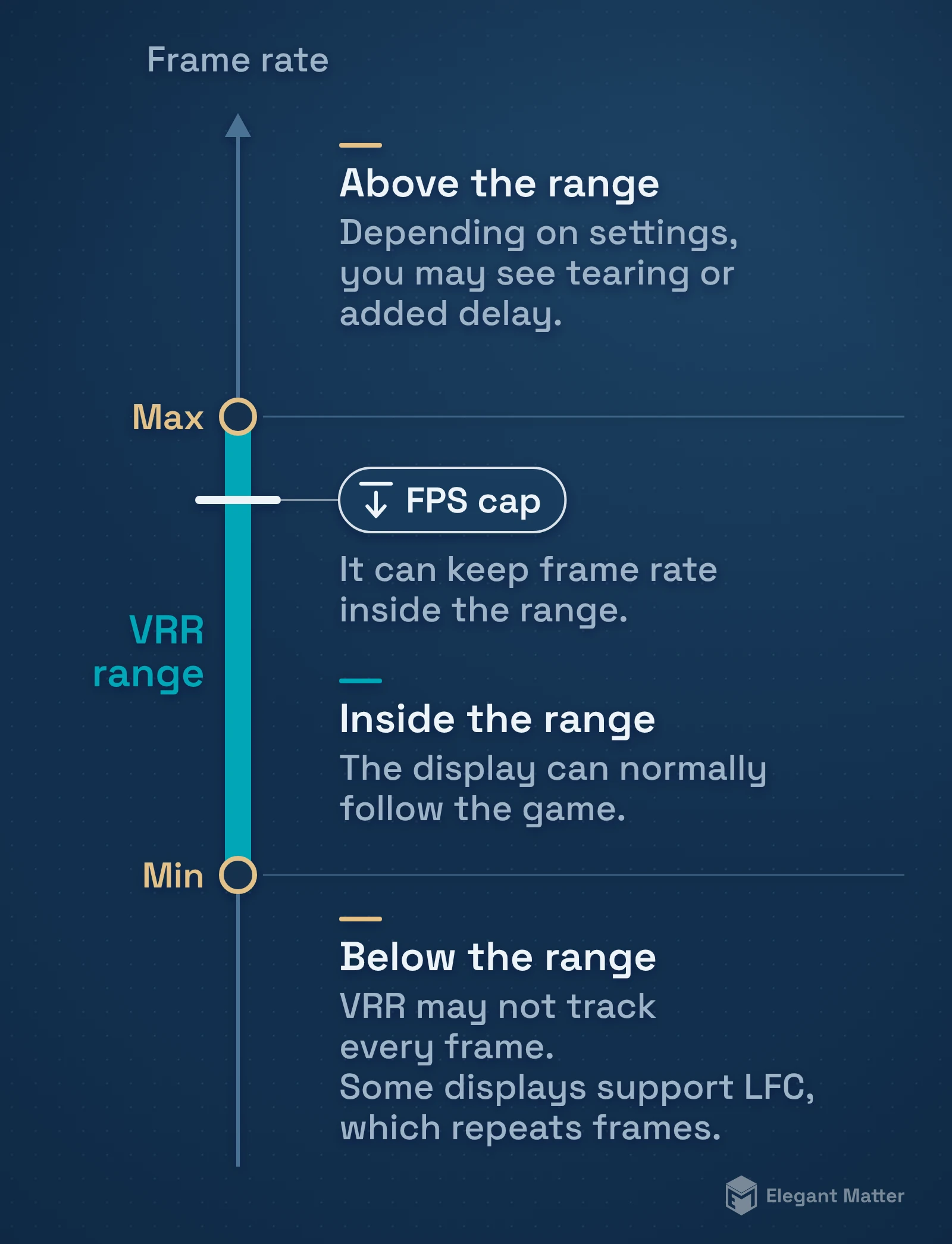
Inside the range: the display can normally vary its refresh timing to follow the game.
Above the range: the display cannot refresh faster than its maximum. Depending on VSync and driver/game settings, you may see tearing, added synchronization delay, or a transition to another presentation behavior. An FPS cap can prevent that transition.
Below the range: a standard VRR implementation may no longer track every frame directly. Some monitors support low-framerate compensation by displaying each frame more than once. AMD requires LFC for its FreeSync Premium and Premium Pro tiers.
This is why two people using “FreeSync at 144 Hz” can still report different behavior: their panels may have different ranges and different LFC support.
Does fullscreen versus borderless change tearing?
It can change the presentation path, but it does not repeal the synchronization problem.
On Windows 11, Optimizations for windowed games can move compatible DirectX 10 and 11 games in windowed or borderless mode to the newer flip-model presentation path. Microsoft says this reduces frame latency and enables features including VRR on supported displays.
That is one reason old advice that exclusive fullscreen is always required for low-latency VRR is no longer safe as a blanket statement. Some games and systems still behave differently by mode, so changing fullscreen mode is a useful troubleshooting step. It is not a substitute for understanding whether VSync, VRR and the frame-rate ceiling are configured coherently.
For a concrete NVIDIA Control Panel example, NVIDIA’s setup instructions, checked on 30 October 2026, use Display → Set up G-SYNC. Enable G-SYNC/G-SYNC Compatible and select the display you intend to use. Where the display-specific option appears, enable settings for that model, then apply the changes. Select Windowed and full screen mode if you want G-SYNC in windowed applications; NVIDIA recommends Full screen mode when windowed applications have problems but fullscreen G-SYNC is still wanted. Its instructions also require a compatible display configured as primary and Monitor Technology set to G-SYNC/G-SYNC Compatible under Manage 3D Settings.
Which fix should you try first?
| Your setup or symptom | Best first move | Why | Main caveat |
|---|---|---|---|
| Fixed-refresh display, visible tearing | Enable VSync | Prevents frame changes during a refresh | Can add latency or change pacing |
| VRR-capable display, frame rate usually inside VRR range | Enable VRR | Lets display timing follow GPU output | Requires compatible display/GPU/connection |
| VRR display, frame rate often exceeds the range | Add an FPS cap | Keeps output inside the useful VRR range | Exact cap depends on setup |
| Frame rate falls below the VRR minimum | Check for LFC and reduce load if needed | LFC can preserve synchronized behavior below the nominal minimum | Not every VRR display has equivalent LFC behavior |
| Tearing only in one display mode | Compare fullscreen and borderless, then check sync settings | Windows presentation paths can differ | Mode change alone may only mask the underlying configuration |
| No tearing, but motion still hitches | Investigate stutter separately | Tearing and frame-time instability are different symptoms | VSync/VRR cannot fix every CPU, shader or asset-streaming hitch |
A practical troubleshooting order
- Confirm that the symptom is actually tearing: look for a horizontal split rather than a pause in motion.
- Check the monitor’s refresh rate in the operating system and the monitor’s VRR support/range.
- If VRR is available, enable it in the monitor and the relevant GPU/OS settings.
- If frame rate regularly exceeds the VRR range, test a sensible FPS cap that keeps it inside the range.
- On a fixed-refresh display, or if tearing remains outside VRR behavior, test VSync.
- If the problem changes between fullscreen and borderless, check the Windows/game presentation settings rather than assuming one mode is universally superior.
- If the image no longer tears but still stutters, move on to frame-time causes such as shader compilation, CPU limits, storage streaming or unstable frame rate.
The cleanest setup is the one that keeps frame presentation synchronized without adding more latency or instability than the game needs. VRR gives modern systems the most flexibility, but VSync and FPS caps remain useful tools rather than obsolete alternatives.