

A sync warning deserves a pause, especially when your latest session happened on another PC or Steam Deck. The first job is to protect the progress you want to keep.
Quick answer
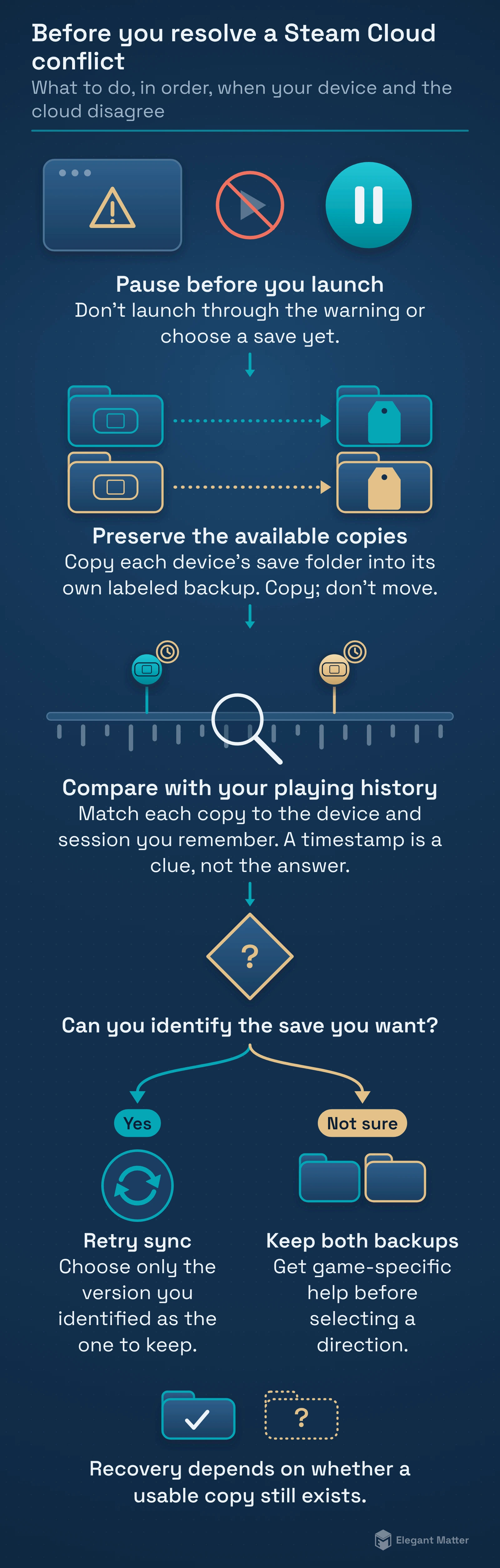
Stop before launching through the warning or choosing a conflicting save. Identify the device where you last made the progress you want, preserve the available copies, then resolve the sync problem. Choose local or cloud according to that history; the newest-looking timestamp alone is insufficient. Recovery depends on whether a usable copy still exists.
Contents
- Before you launch or choose a save
- Which problem are you seeing?
- Preserve the available copies
- Local or cloud: compare the evidence
- Retry sync without forcing the wrong direction
- When progress has already disappeared
- PC and Steam Deck limitations
Before you launch or choose a save
Write down the game, Steam account, last device used and the progress you remember: a completed quest, a level, a checkpoint or a save slot. Take a screenshot of the warning for your own record. Leave the other device alone until you have a preservation plan.
This guide follows Valve and developer documentation. We haven’t reproduced a Steam Cloud conflict.
Which problem are you seeing?
Valve’s Steam Cloud support guidance distinguishes a failed synchronization from a conflict between different local and remote files. It advises addressing a sync failure before starting the game; continuing can create a conflict and lose progress.
| Situation | First action | What it does not establish |
|---|---|---|
| Sync failed or is out of date | Pause the launch; locate the last wanted progress. | A failed transfer does not identify the better copy. |
| Local/cloud conflict | Record both choices and compare them with your playing history. | Cloud is not automatically the most recent useful save. |
| Recent progress is missing | Preserve what remains on each device before trying a restore. | A successful sync does not guarantee that old progress survived. |
Preserve the available copies
Find the game’s actual save location in its developer’s support documentation. Copy the relevant save folder into a separate backup location outside the game’s active save directory. Keep each device’s copy in its own labeled folder. Copy files; do not move them, rename the active save or overwrite a backup while you are still identifying it.
For example, Supergiant’s Hades support guide lists the Windows save folder as C:\Users\[USERNAME]\Documents\Saved Games\Hades\ and the Mac folder as ~/Library/Application Support/Supergiant Games/Hades. Those are examples for Hades, not instructions for every Steam game. The guide also documents an alternate Windows save location, so check whether your installation uses it.
Steam’s userdata directory is not a universal save-folder answer. The Steamworks Cloud documentation lets developers select file groups from several locations or integrate the Cloud API. Copying one familiar Steam folder may therefore miss the files that matter.
If a device is already offline and may hold the only wanted copy, back up its local saves before reconnecting it. If you cannot confidently find the save files, stop and ask the developer for the correct location. Do not replace a save file whose purpose you have not identified.
Local or cloud: compare the evidence
Valve says conflict dates should be considered alongside what you did in the game. Reconstruct the sequence: where did you play, when did you stop, and did you return to the other device afterward? An older session opened later may produce a later-looking file without containing the progress you want.
- Match each copy to the device and session you remember.
- Keep the displayed timestamp, file names and sizes as supporting clues.
- Check the account and save slot before assuming progress disappeared.
- If the evidence disagrees, keep both backups and seek game-specific help before selecting a direction.
Imagine finishing a quest on the Deck while offline, then opening yesterday’s save on a desktop. The desktop copy is not the preferred copy just because it was touched afterward. This is an illustrative scenario, not an observed test result.
Retry sync without forcing the wrong direction
With backups secured, check that the game has closed on every device and that the intended Steam account is signed in. Confirm that Cloud synchronization is enabled for the game. Valve documents the per-game control under Library → Properties → General, as well as the global Cloud setting.
Resolve an ordinary connection failure before playing again. Allow Steam to finish its cloud activity on the device holding the wanted progress, and then check the receiving device. If a conflict appears, choose only after identifying the version you want to retain.
If repeated attempts fail, use Valve’s support guidance and the game developer’s troubleshooting route. Avoid cycling through unrelated fixes while the save state is uncertain. Deleting cache files, reinstalling a game or disabling security software should not be a generic first response to a cloud warning.
When progress has already disappeared
Valve warns that Steam Support cannot recover lost saves or resolve the choice in a cloud conflict. Another device may still hold an unsynchronized copy. Preserve it before letting normal synchronization alter it.
Some games retain their own backups. Hades, for example, documents a slot-specific recovery process using local .sav and backup files. Follow that developer procedure only for the matching game and platform, after saving a separate copy of the folder. Backup naming rules from one title do not transfer to another.
If every available copy contains the older state and the game has no usable backup, this guide cannot promise a way to reconstruct the missing progress.
PC and Steam Deck limitations
Steamworks describes normal synchronization around game sessions and a separate Dynamic Cloud Sync integration for supported games. That integration requires developer work. Do not assume a suspended game on the Deck has completed the same handoff as a closed, synchronized session.
Cross-platform saves also depend on the game’s implementation. Native Linux, Windows through Proton and other versions may use different locations or compatibility rules. Before changing a compatibility tool or copying files across operating systems, check the title’s guidance.
For the next device handoff, close the game, let cloud activity finish and check the destination before making new progress. Keep independent save backups for games where losing a session would matter to you.