

A page can save image downloads and still make its main image appear later. Lazy loading helps when it postpones work the reader does not need yet. Applied to the image that introduces the page, it can postpone the thing they came to see.
Quick answer
Load images in the initial viewport promptly, especially the image responsible for Largest Contentful Paint (LCP). Lazy-load images farther down the page. Check the actual mobile and desktop layouts before deciding where that boundary falls. A high fetch-priority hint does not cancel lazy loading.
Contents
- The image you should load first
- Which images can wait?
- Loading and priority control different things
- Hero images, carousels and CSS backgrounds
- What WordPress and plugins can change
- How to inspect the final output
- Change one thing and measure again
The image you should load first
Largest Contentful Paint measures when the largest eligible content element becomes visible in the viewport. It may be an image or a block of text. The file you call a “featured image” in your CMS is not automatically the element measured as LCP.
When the LCP element is an image, its request needs to start promptly. Google’s LCP optimization guidance explicitly advises against lazy-loading it. First identify the element on the real page; then check how the browser discovers and requests its resource.
For an image needed immediately, remove loading="lazy" or use loading="eager". If a plugin substitutes the real source only after JavaScript runs, changing that attribute alone may leave the discovery delay in place.
Which images can wait?
A photograph several sections down an article is a good candidate. So are product images well below the initial grid and a gallery that the reader reaches after substantial scrolling. Keep the decision tied to the rendered layout.
| Image context | Starting decision | Check before shipping |
|---|---|---|
| Initial visible image / likely image LCP | Load promptly; exclude from lazy loading. | Which element is LCP at representative widths? |
| Image well below the initial viewport | Use native lazy loading where suitable. | Does it appear before the reader reaches it? |
| First visible carousel slide | Load promptly. | Is the initial slide discoverable without interaction? |
| Later or hidden carousel slides | Consider deferral. | Does the carousel reserve space and load in time? |
| Hero implemented as a CSS background | Inspect resource discovery separately. | Is critical CSS or script delaying the request? |
Treat this table as a starting point, not a fixed count of images to exempt. A mobile layout can move a desktop sidebar image into the main column, change the hero’s size or remove an image altogether.
Browser-level lazy loading fetches offscreen images before they reach the viewport, using browser-dependent behavior. Seeing a below-the-fold request in DevTools does not by itself mean lazy loading failed. Avoid tuning around a single universal pixel threshold.
Loading and priority control different things
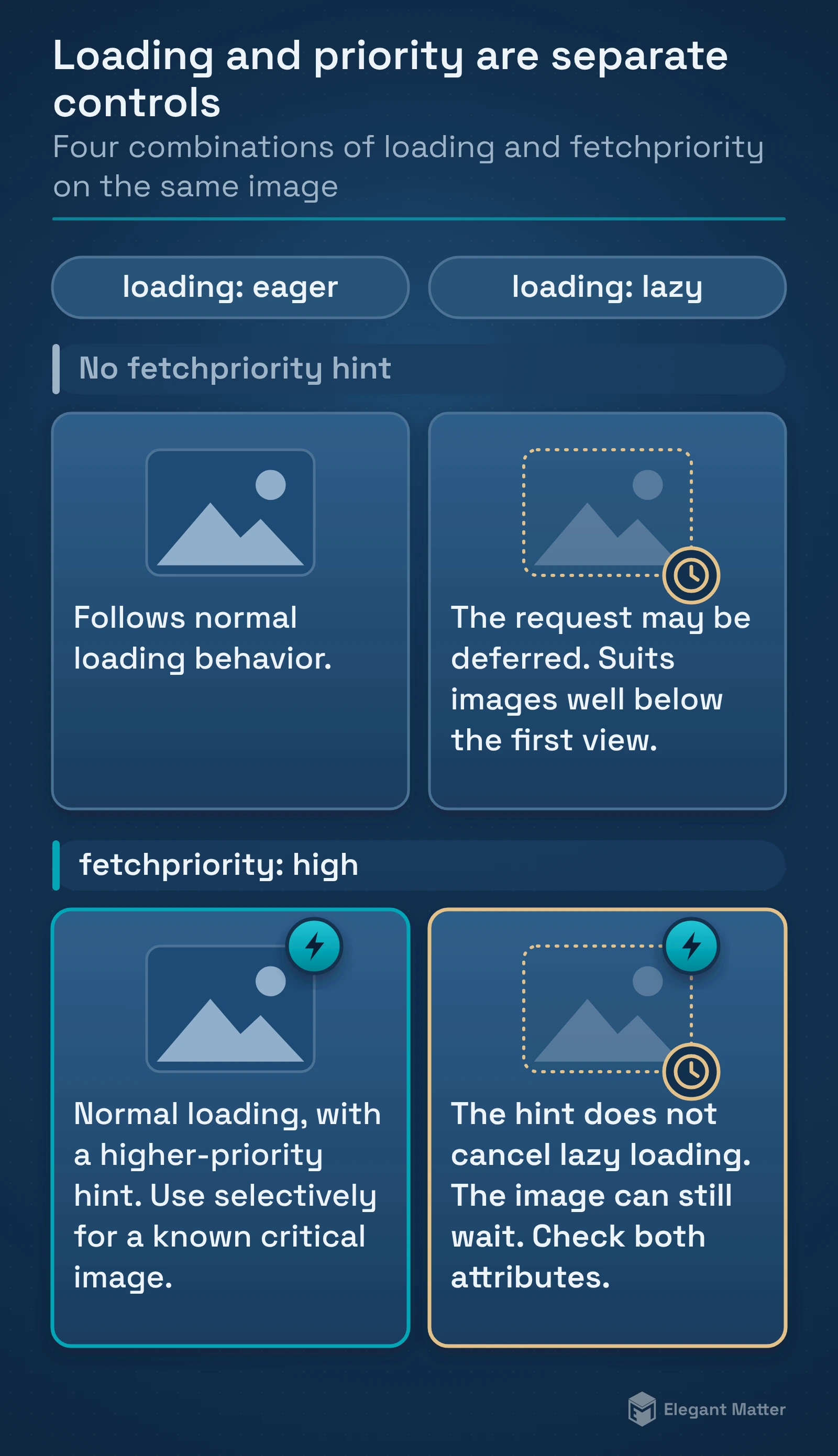
The loading attribute controls whether an image’s request may be deferred. fetchpriority gives the browser a hint about the importance of the request. An eager image follows normal loading behavior; eager is not a command to give every image the highest priority.
For a known critical image, fetchpriority="high" can be useful. Apply it selectively. If everything is marked important, the hint provides little useful distinction between the image the reader needs now and the rest of the page.
An image with loading="lazy" and fetchpriority="high" can still wait for lazy-loading conditions before it is requested. Inspect both attributes together when troubleshooting a slow hero. Replacing one optimization checkbox with another is not enough.
Hero images, carousels and CSS backgrounds
For a hero rendered as an img element, make its real source available in the initial HTML where practical. If the image is chosen responsively, inspect the current resource as well as the fallback src; the browser may fetch a srcset candidate.
A CSS background follows a different discovery path. The loading attribute on img does not configure it. Google’s LCP guidance discusses early discovery and preloading when a critical resource cannot otherwise be found promptly. Use a preload only after identifying the actual bottleneck and the correct resource; check for duplicate downloads.
Carousels deserve a first-slide check. A script that builds the entire carousel after loading can delay the initial image even when its eventual img has no lazy attribute. Later slides can wait if they load before a swipe or transition exposes them. That is a component-specific decision, not a reason to eagerly fetch every slide.
Reserve image space with appropriate dimensions or an aspect ratio. Lazy loading should not make the page jump as the reader scrolls. The browser-level guide explains why missing dimensions can also affect loading decisions.
What WordPress and plugins can change
WordPress core can add loading, fetchpriority and decoding attributes through its loading optimization function. Its reference documents context-dependent behavior and a warning for an image that combines loading="lazy" with fetchpriority="high".
The final page can also be changed by a theme, page builder, optimization plugin or delivery service. Do not infer the result from WordPress’s core behavior or from a setting’s name. An exclusion may apply to one template while another still postpones its hero.
Find the layer responsible for the attribute or source rewrite, change that layer’s configuration and check the public output again. Editing a generated tag in DevTools is useful for investigation but does not save a site configuration change.
How to inspect the final output
This is a documentation-based inspection workflow, not a performance test conducted on Elegant Matter. Chrome’s Performance reference describes the Live metrics screen, its LCP-element highlight and load recording through Record and reload.
- Open the actual page at a representative desktop width, then repeat at a mobile width.
- In Performance, identify the LCP element. If it is text, investigate its rendering path instead of assigning an image as the cause.
- Use Inspect to locate the image in Elements. Check loading, fetchpriority, its real source and any JavaScript-managed source attributes.
- Record and reload in Performance. Examine the LCP request-discovery insight and the resource’s place in the trace.
- Use Network to match the image request to its initiator, timing and priority. Record the cache and throttling conditions so comparisons use the same setup.
The Elements documentation explains how Inspect selects the live DOM node. Chrome’s Network reference covers request inspection and timing. Looking at both helps separate a final attribute from when the resource was actually requested.
Change one thing and measure again
Keep a before trace, make the narrow change and repeat under the same conditions. Check several loads instead of treating one local result as a universal improvement. Also scroll through the page to look for newly delayed images or layout shifts.
A smaller image file and an earlier image request address different parts of the load. Compression cannot recover time spent waiting to discover a resource; early discovery cannot make an oversized file small. If format selection is the next problem, our SVG vs PNG guide explains the separate choice between vector and raster assets. For raster delivery formats, our AVIF vs WebP comparison examines file sizes across different assets, dimensions and compression modes.
Before shipping, repeat the desktop and mobile checks and confirm that the images farther down the page still appear in time.
Sources and verification
- web.dev — Optimize Largest Contentful Paint
- web.dev — Browser-level image lazy loading
- web.dev — Largest Contentful Paint
- WordPress — Loading optimization attributes
- Chrome DevTools — Performance features reference
- Chrome DevTools — Viewing and changing the DOM
- Chrome DevTools — Network features reference