
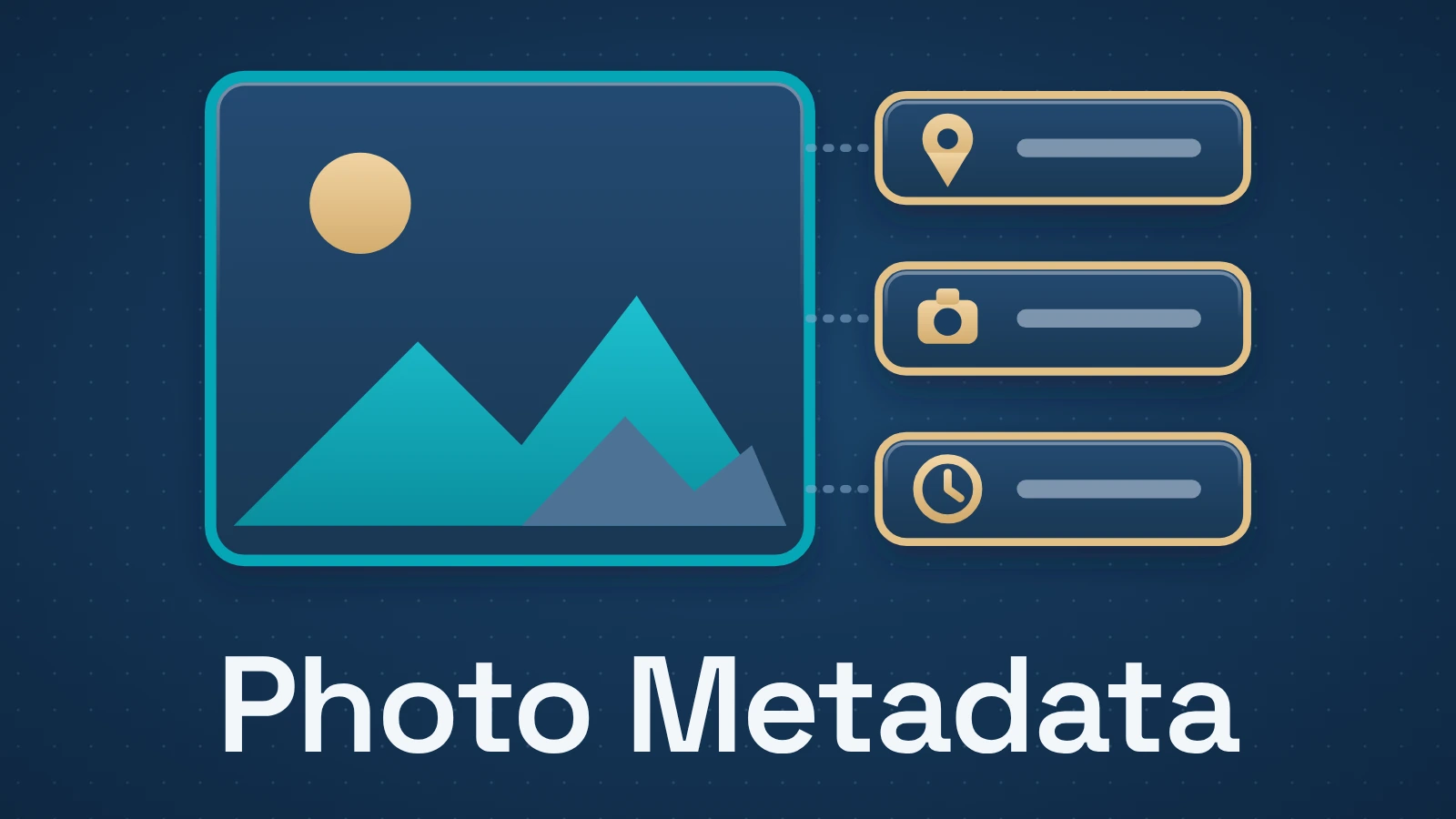
A photo can carry much more than visible pixels. Depending on the file and the software that created it, metadata can include when the image was captured, the camera or phone used, lens and exposure details, location coordinates, captions, creator information and copyright fields.
The privacy-sensitive part is often location, but “remove the metadata” is not as simple as toggling one setting in a photo app.
Quick answer
To remove photo metadata, make a separate sharing copy and verify the result. In our controlled test, removing GPS alone left other identifying fields. Methods that removed all seeded identifying fields differed in whether they preserved color profiles and orientation.
Contents
- Photo metadata is not one single layer
- What information might be in a photo file?
- Why GPS metadata deserves special attention
- Editing a location in Google Photos is not the same as stripping the file
- How to remove location before sharing from an iPhone
- How to make a privacy-safe share copy
- What our metadata-removal test showed
- Why blindly deleting every metadata field can be a bad idea
- Does a messaging or social app strip metadata for you?
- What should you actually remove?
Photo metadata is not one single layer
The IPTC’s overview of photo metadata divides useful image information into descriptive, rights and administrative data. Metadata can be embedded inside the file, stored in an XMP sidecar or held externally in a digital asset management system.
For privacy, it helps to separate three things:
- Embedded file metadata. EXIF, IPTC, XMP and related fields can travel with a JPEG or other image file.
- Library or service metadata. Apple Photos, Google Photos and other services can hold location, captions, people, albums or estimated information in their own databases.
- What is visible in the pixels. A street sign, window view, school badge or landmark can reveal location even if the file contains no GPS metadata at all.
Removing one layer does not remove the other two.
What information might be in a photo file?
Apple’s current iPhone Photos documentation shows the kinds of data a user may see for a photo: the capture device, date and time, lens and shutter information, file size and the location where the photo or video was taken.
IPTC metadata can also include captions, keywords, creator and copyright details. Those fields can be useful and should not automatically be treated as dangerous.
| Data | Example | Why it exists | Privacy relevance |
|---|---|---|---|
| GPS/location | Latitude, longitude, place | Map/search organization | Can reveal home, work or routine locations |
| Date and time | Capture timestamp | Sorting and record keeping | Can reveal when you were somewhere |
| Device/camera | Phone model, camera, lens | Technical workflow | Usually low risk alone; can add context |
| Exposure/technical data | Shutter speed, focal length | Photography workflow | Usually low privacy risk |
| Creator/rights | Name, copyright, credit | Attribution/licensing | May identify the creator intentionally |
| Caption/keywords | Description, people, subjects | Search and asset management | Can contain names or sensitive descriptions |
The right goal is not always “zero metadata.” It is “no metadata you did not intend to disclose.”
Why GPS metadata deserves special attention
When a camera has location access, coordinates can be embedded at capture time.
Apple’s Personal Safety guide says iPhone and iPad Camera can use cellular, Wi-Fi, GPS and Bluetooth-derived location information and embed coordinates in photos and videos. Apple provides controls to remove a photo’s current location, prevent Camera from collecting location in the future and disable Location in the Photos share sheet for a particular share.
A photo taken at home can therefore reveal more than the room itself. The coordinate metadata may identify the building even when there is no recognizable landmark in the image.
Editing a location in Google Photos is not the same as stripping the file
Google Photos has more than one kind of location.
Its location help distinguishes camera-saved locations, locations you add manually and locations Google estimates. Google says estimated and manually added locations can be changed or removed in Photos, while a location automatically added by the camera cannot be changed or removed there.
That distinction matters. A library view can show one location state while the original file still carries camera metadata.
Google also says that location information is private by default in most newly shared albums, links and conversations, and it lets users control whether location details are included in some Google Photos sharing contexts. Google’s location-privacy documentation separately warns that people may still infer a location from visible landmarks.
For sensitive sharing, inspect the exported file itself rather than treating a cloud-library setting as proof that the file has been sanitized.
How to remove location before sharing from an iPhone
Apple currently offers two different controls, and they solve different problems.
Remove the stored location from the photo
In Photos, open the image, choose the More menu, select Adjust Info, then Adjust Location and No Location. Apple’s Personal Safety guide documents this as removing the location metadata associated with that photo.
Omit location from a particular share
Select the photo, open the Share Sheet, choose Options, turn Location off, then share. This is useful when you want to keep the location in your own library but not send it with that share.
Stop future photos storing location
Go to Settings → Privacy & Security → Location Services → Camera and choose Never if you do not want Camera to collect location metadata.
This is a broad privacy choice: you also lose the convenience of browsing your own photos by where they were taken.
How to make a privacy-safe share copy
For a photo that will be posted publicly or sent to someone you do not fully trust, use a copy-based workflow.
- Keep the original. Metadata can be useful for your own archive, photography workflow and proof of authorship.
- Create or export a share copy. Do not destructively strip the only copy.
- Remove the fields you do not want to disclose. Location is the common priority; names, captions or creator information may matter too.
- Inspect the exported file. Use your operating system’s file information or a metadata viewer to check the copy, not just the original in the photo library.
- Share that copy.
- Remember the pixels. Metadata removal cannot hide an address sign, face, reflection or landmark visible in the image.
For batches or a workflow where you need to know exactly what remains, a specialist metadata tool can give a more complete view than a social app’s share toggle.
A JPEG share-copy workflow with ExifTool
If you already have ExifTool installed, work on a duplicate JPEG named share-copy.jpg in a separate sharing folder. Keep the original outside that folder. Open a terminal in the sharing folder. This recipe preserves orientation and color-space information while removing other metadata; it is not a recipe for RAW or every image format.
First inspect the copy:
exiftool -a -G1 -s share-copy.jpgThen remove metadata while retaining the rendering allowlist:
exiftool -all= --ICC_Profile:all -tagsfromfile @ -ColorSpaceTags -Orientation share-copy.jpgExifTool normally retains a backup with _original appended to its filename. That backup still contains the original metadata: keep it private and do not include it when sharing. Inspect the edited JPEG again with the first command, open it to check its orientation and appearance, and confirm that GPS, names, captions and other identifying fields you intended to remove are absent. Share only the edited JPEG.
The recipe also removes rights fields; preserve attribution you need or are required to retain. Required rendering fields, the filename and visible details in the image can still reveal information, so do not describe the result as anonymous.
We checked this complete command on both JPEG fixtures from our study using ExifTool 13.60 on 1 Nov 2026. It removed all seeded identifying fields, preserved compressed image data, decoded pixels, orientation and the ICC profile, and retained byte-identical backups. This additional check does not establish safe removal for arbitrary files.
Original research · Elegant Matter experiment, 12 Oct 2026
What our metadata-removal test showed
On 12 Oct 2026, we tested four removal recipes on three original synthetic images: two JPEGs and one transparent PNG, each 480 × 320 pixels. We added fictitious location, capture-time, device, creator, caption and rights fields in EXIF, XMP, IPTC or PNG text, as supported by each format. One JPEG used an orientation tag to display its stored landscape pixels upright in portrait.
Using ExifTool 13.59 and Pillow 12.3.0, we produced 12 output files. The JPEGs each contained 24 seeded identifying fields; the PNG contained 23.
| Approach | Seeded fields left | What happened to the image |
|---|---|---|
| Remove GPS only | 16 per JPEG; 15 in PNG | Exact pixels, orientation and color profile retained; other identifying fields remained. |
| Strip with a rendering allowlist | None in all three files | Exact decoded pixels, orientation, ICC profile and compressed image data retained. |
| Strip broadly | None in all three files | Raw pixels retained, but ICC profiles removed. The rotated JPEG lost its display orientation. |
| Fresh pixels to PNG | None in all three files | Orientation-normalized display pixels and the supplied ICC profile retained; JPEG inputs produced larger files. |
Broad stripping changed the rotated JPEG’s orientation-aware dimensions from 320 × 480 to 480 × 320 without changing its stored pixels. We verified that the color profile was missing; we did not measure a visible color shift. The fresh PNG copies grew from 29,045 bytes to 100,314 and 95,477 bytes for the two JPEG inputs.
How we ran and checked the test
Each ExifTool recipe ran on a separate copy. GPS-only removal deleted the GPS group and XMP-exif GPS fields. The rendering allowlist deleted metadata while retaining the ICC profile and copying back color-space tags and orientation. Broad stripping used the same deletion without those exceptions.
GPS only: -GPS:all= -XMP-exif:GPS*=
Rendering allowlist: -all= --ICC_Profile:all -tagsfromfile @ -ColorSpaceTags -Orientation
Broad strip: -all=
For the fresh PNG recipe, Pillow applied EXIF orientation, constructed a new image from decoded pixels and saved it with the original ICC profile explicitly supplied. We copied no source EXIF, XMP, IPTC or text metadata. That preserves the pixels decoded from a JPEG; it cannot recover detail lost in earlier JPEG compression.
We reopened every output and checked metadata inventories, exact pixels, orientation, profile bytes and JPEG/PNG image data. A second run on the same inputs produced identical output bytes and measurements. Pillow EXIF inspection and direct file-container checks corroborated the metadata results.
These results apply to our synthetic files and recorded recipes. We did not test RAW, HEIC, camera MakerNotes, phone sharing controls, Google Photos or messaging services. The allowlist also removed the fictitious rights fields; preserve real attribution you intend to share. An ICC profile’s presence alone does not certify privacy. Inspect the final copy, and remember that identifying details in the pixels remain.
Download the study files and results (ZIP; 0.76 MB). The metadata fields in the fixtures are deliberately fictional; the inputs and GPS-only outputs retain them as test evidence.
Our original synthetic fixtures, scripts and study results are available under CC0 1.0. Third-party software is not included.
Why blindly deleting every metadata field can be a bad idea
Metadata is part of how some image formats function.
The current ExifTool FAQ warns that all metadata should not be removed from some formats such as RAW images because some information is necessary to display or render the image correctly. Even for JPEG, ExifTool recommends preserving color-profile and color-space information when safely removing other metadata.
That is a strong reason to avoid random “delete all metadata” commands copied from an old forum post.
For ordinary privacy sharing, JPEG copies are comparatively straightforward to sanitize. For RAW, TIFF-based or professional workflow files, preserve the original and use a deliberate export workflow instead of trying to erase every tag in place.
Does a messaging or social app strip metadata for you?
Sometimes, but that is a poor privacy strategy.
Services can resize, recompress or transform uploads, and their behavior can change. Some may remove certain embedded fields from a delivered image while retaining account-side information about the upload. Others may let recipients download an original file.
If the location would be sensitive, remove it before the file enters the service. That makes your privacy decision independent of what the platform happens to do today.
What should you actually remove?
For most casual sharing, start with:
- GPS coordinates and named location;
- sensitive captions, comments or keywords;
- personally identifying creator/contact fields you did not intend to publish.
Usually keep:
- color profiles or data required for correct rendering;
- rights/copyright metadata when you intentionally want attribution to travel with the image;
- your untouched original file in private storage.
A clean share copy is safer than trying to turn your archival original into an anonymous file.
Sources and verification
- Apple — See photo and video information on iPhone
- Apple Personal Safety — Manage location metadata in Photos
- Google Photos Help — Understand, find and edit photo locations
- Google Photos Help — How Google Photos protects your location data
- IPTC — What Is Photo Metadata?
- ExifTool — FAQ, including safe metadata removal
- Elegant Matter — Controlled metadata-removal test, 12 Oct 2026: method and results